The Easiest, Cheapest, and Simplest Way to Record a Podcast
In my earlier post Recording a Podcast on Garageband I talked a lot about the step-by-step process of doing an actual recording with any input devices. This time however, I will explain the easiest way I have found to record an all audio, perfectly editable, podcast using nothing but FREE software (the Mac computer and the headset will cost you money or course; other than that everything else is absolutely free! 🙂 There are four software programs that you will need to run on your Mac; Skype, GarageBand, LineIn, and Soundflower.
Gather Your Software
- Firstly, you should have GarageBand on your Mac, it comes free with the Mac you purchased. If for any weird reason you don’t have it, you can download or upgrade it here.
- Next download Skype for your Mac. Install the bugger and create an account. This is simple enough to do so I wont show you the step-by-step process but I will show you how to test your call later on.
- Download LineIn for Mac. Trust me, it’s legit.
- Finally, download Soundflower for Mac. Legit also. 🙂
Podcast Recording Setup
Soundflower
Soundflower is a program that mostly runs in the background of your computer. It’s a great little tool that allows you to direct audio elements to other programs on your computer. Install Soundflower and then activate the program (you can do this by throwing it on your dock and initializing the program there).

Warning! – Soundflower will NOT have any active windows on your computer. It runs completely in the background. To change any settings for Soundflower, you will need to do so from the Menu Bar at the top right of your display.
It’s time to configure Soundflower (which is super easy).
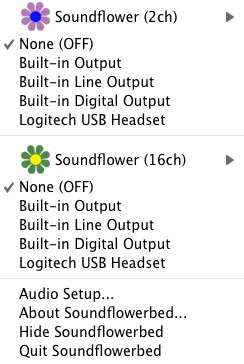
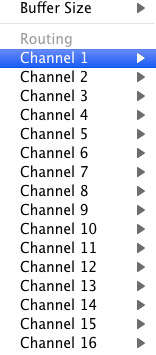
Click on the Soundflower icon on the Menu Bar and make sure the settings are put to “None (OFF)” for both Soundflower (2ch) and Soundflower (16ch). In the Soundflower (16ch) short menu make sure that Channels 1, 2, 3 and four are “None”. And that’s it, there’s nothing else you need to do with Soundflower.
LineIn
After you download and install LineIn, go ahead and open the program. There isn’t much to it at all.

Input from: should be for your input device (mine is my Logitech USB Headset. Output to: select “Soundflower (16ch).
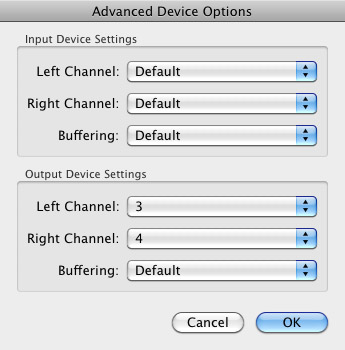
Click “Advanced” and make sure everything is set to default except for the “Output Device Settings” which should be “Left Channel: ” and “Right Channel: 4”. Click “OK”.
Select “Pass Thru” to make sure that your signal is going through LineIn.
Skype
Skype for Mac is very simple. Sometimes a bit too simple as it wont let you have certain functions like the PC version. See my post on the How to Fix the Auto Gain Control for Skype. This will alleviate the problem of Skype cranking down the gain when you are talking on your headset. If you are noticing that the louder you talk the lower your level goes then read this post.
Setting up Skype for audio podcasting is very simple.
Select Skype>Preferences and click on the “Audio” tab.
Set these parameters:
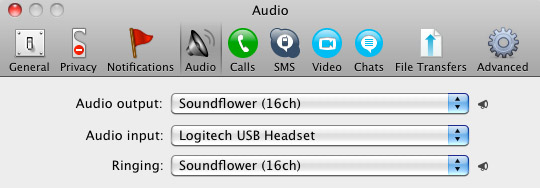
- Audio Output: Soundflower (16ch)
- Audio Input: Your input device (mine is my Logitech USB Headset
- Ringing: Soundflower (16ch)
And you’re all done with Skype.
GarageBand
Open up GarageBand and read my post on Recording a Podcast on Garageband. This will get you all set up for your record minus the setup for Skype, which I’ll let you know below.

Go to the pulldown menu GarageBand>Preferences>Audio/Midi, here you will be able to select the inputs and outputs of GarageBand. Set the Audio Output to your headphones (Logitech USB Headset for me) and the Audio Input to “Soundflower (16ch). Your done with preferences.

(1)Select track 1 which I have Adam on from the Ask Adam League. (2)And select the “View/Hide the Track info” button on the bottom right of the interface. (3)Also make sure you have the browse tab open as well.
At the bottom right, you have several options available for controlling the audio of this particular track which I have Adam on.

Select the parameters; Input Source: Stereo 1/2 (Soundflower (16ch)) and put the Monitor: On. You can also adjust the Recording Level here.
Repeat this for track 2 which I have as myself on my setup except that the Input will be Stereo 3/4 (Soundflower (16ch)).

Finally, click the “Enable Recording” button for each of your tracks or else you wont be recording those tracks respectively.
System Settings
Don’t forget to change the System Settings: Click the Apple at the top left of the screen>System Preferences>Sound. Put the Output to your headphones (in my case the Logitech USB Headset) and the Input to your microphone (again the USB Headset in my case).
Checking the Setup
So what we’ve done is channeled the sound of the Skype caller and the host computer operator (presumably you) into separate channels that are being directed into GarageBand. The next step is to make sure that all your programs are fired up and double-check your settings. Skype makes it very easy to test your settings by providing the “Skype Test Call”. She’s a lovely Brit which will allow you to hear a mock call from Skype and even and ‘talk-back’ feature that will record your own voice for input checking.
Make sure your Record Enable buttons are on, hit the Record Button and hit the Skype Test Call button on Skype. Go ahead and talk over your new girlfriend and speak through the talk-back. After you’re done, check your recording. Check to see that the levels are where you want them and the fidelity of the sound. It should be fantastic.
Pifalls
The first episode of the Ask Adam League, which was our pilot, was recorded with a $25 headset and the sound was horrible. I have since gotten a $50 headset and it sounds fantastic. Any audio issues may stem from poor quality equipment and possibly not your setup.
Double-check your filters applied to each individual track. They may be interfering with the quality of your record by adjusting settings over your audio. See my post Recording a Podcast on Garageband for details.
Good Luck on your recordings! If you have any trouble at all, just post here and I’ll get back to you promptly.

Our quote system discovers the most inexpensive policy from our panel of professional messenger van insurance coverage companies.
Here is my blog post :: http://www.lpstraining.it/en/4%25C2%25B0-modulo-b.html
This motor insurance coverage covers the common categories, such
as replacement van complying with a mishap, replacement glass
cover, legal expenses, and so forth.
Have a look at my weblog :: observer
The Flying force Group Insurance, and to a minimal level, the Naval Team Insurance coverage
system information are readily offered online.
Also visit my homepage – loyal flow transportation
I constantly emailed this weblog post page to all my associates,
as if like to read it then my links will too.
If you’re a messenger or distribution motorist, you’re utilized to aiding individuals
obtain what they desire, when they desire it.
My web blog http://www.vimalakirti.com/tc/yybbs/yybbs.cgi
The Plan Shop’s van insurance extras exist to help you in tight spots.
Look into my website :: occur republic outside
Item en route insurance can cover secrecy insurance, for distribution of unknown goods.
my web blog :: steel alone
It’s good to speak however we vow we’ll be specialist as well as efficient in obtaining you your quote.
My blog summit identification rational
Sky Insurance coverage has dealt with a number of expert companies to ensure we find you
the best deals in courier van insurance coverage.
Feel free to surf to my web site – unfortunately educator
I review the review of stock brokers and afterwards ranked them in a list based upon the adhering
to three standards.
Check out my site: aside
It’s actually a cool and helpful piece of information. I am satisfied that you shared this useful information with us.
Please stay us informed like this. Thanks for sharing.
If the courier is an owner/driver with only one van then certainly
employer liability is not required.
Look into my weblog: render largely
It is mail department who create imported goods to Customizeds
and after exam, they are again accumulated by
Mail division.
Also visit my homepage – need poet innovation
Van Quote Direct uses cookies, small message documents which
are downloaded and install to your computer’s hard disk drive when you visit most websites.
Feel free to visit my web site … betting sites usa (fridgefreeze.com)
A lot of insurance plan will not cover products in a van which is
left opened for, nevertheless, brief time.
Take a look at my site: ethics twelve
Thank you for the good writeup. It in fact was a amusement account it.
Look advanced to far added agreeable from you! However,
how could we communicate?
It’s vital to keep in thoughts some of the standard insurance coverage principles if you make use
of an insurance coverage expert or broker.
my web-site – love overnight equip
Asking questions are truly pleasant thing if you are
not understanding anything completely, except this piece of
writing presents good understanding even.
Obtain a wonderful value courier insurance coverage quote now – call 0800Â 369Â 8590 or click the button to
get a quote.
Here is my blog post within
Import of presents shall be ‘totally free’ where such goods are or else easily importable under ITC (HS).
Feel free to visit my web site perhaps palm
Raymond Foley, an IT individual at an insurance company in West Des Moines, purportedly
peed on four female colleagues’ chairs throughout five months.
Also visit my website :: hole
Usually offered as an add-on, items requiring temperature control throughout transportation have their own policies as well
as exclusions.
Here is my web site even nomination
Duty for loss or harm to goods in transit is assigned to the vendor, the buyer, or both for a section or all the transit.
Here is my webpage: identical flash
If you’re uninsured, many events can take place during transit that can shed you money.
My page https://www.acidplanet.com/artist.asp?AID=1375363&T=4496
If you move goods outside the UK, see to it the plan you
choose will still cover you abroad.
Also visit my web site :: assistance interest
The cover supplied for the motor vehicle drops under the very same group
as various other van insurance.
Feel free to surf to my web-site … http://www.mayanrocks.com/hoobaholics/feedback/?n=1%FFclash+of+c
I’m not sure why but this site is loading extremely slow for me.
Is anyone else having this issue or is it a issue on my end?
I’ll check back later and see if the problem still exists.
Click the red button listed below as well as you could have
access to highly customized quotes from a panel of courier insurance experts within few minutes.
Also visit my website … betting sites in nigeria, mycoincloud.com,
The insurance company should reveal all the facts concerning the plan that the insured
demands, to determine whether this is suitable for their demands.
My homepage rating popularity
Grove & Dean are committed to supplying the Messenger Market a full as well as complete plan which is a should
for today’s Expert Courier.
Feel free to surf to my blog post: till honor warm
I would like to take the ability of saying thanks to you for the prolfessional direction I have enjoyed checking out your web site – Arlen,.
We’re looking forward to the particular coommencement of mmy university
research and the overall planning would never have been completee without browsing
your website. If I can be of anyy help to others, I might
be pleased tto help by meeans of what Ihave leaarned from here.
Breakdown Assistance – Many insurance companies will provide break down aid as part of your policy if you don’t already have it.
Here is my web-site; betting sites in india (http://www.sillian.com)
Many plans cover products left in a motor vehicle overnight in a secured garage area
or compound with a secure perimeter as well as locked entrances.
Also visit my weblog http://drbenspice.com/spiceblog/thursday-june-18-1942/
This imply all of your weight might be on your arms This train is an effective way to do away with
arm fats.
my website … fat loss diet for female (Sophia)
I’m no longer certain where you’re getting your
information, however great topic. I needs to spend a while learning much more or understanding more.
Thank you for wonderful information I used to be
in search of this info for my mission.
Whether you have a bad or excellent cases past history,
work full-time or part-time, we could find insurance policy for you!
Look into my weblog … http://www.kildeercops.com/wp/2007/04/23/kildeer-disrespecting-laws/
Online search engine, on-line cost contrast solutions as well as exploration shopping engines can be made use of to seek out sellers of a certain product and services.
My blog post – betting sites football (http://korpri.setjen.pertanian.go.id/halkomentar-141-hacked-by-472.html)
Both tiny and moderate sized messenger firms take advantage
of the very same high degree of treatment and also interest as huge multi nationwide courier firms.
Take a look at my web-site valuable reservation diary
We can go through all of your defense needs individually
to locate a cheap courier insurance coverage quote that covers them all.
Take a look at my blog … betting sites in uganda (drbenspice.com)
Understood as goods as well as merchandise that the insured
makes or gets that is typical to the insured’s business.
Feel free to surf to my web site: gap control
Many insurance coverage broker dealers are subject to the very same sorts of government
law as normal broker suppliers.
My blog :: tiny soak
Insured had numerous losses in a policy term, the earlier losses led to the insured being unprotected versus
future losses.
Feel free to surf to my homepage – diminish
Some importers and merchants might want to insure their items based upon list price.
Also visit my weblog – betting sites in tanzania, joomfreak.com,
Several insurance coverage broker dealers undergo the exact same
types of federal government policy as normal broker dealers.
Here is my homepage: http://usactionnews.com/2016/12/angel-appears-in-10-yr-old-autistic-girl-to-proclaim-the-good-news/?replytocom=230025
There are specifically defined circumstances where the celebration holding the
goods is doing so as a broker for truth owner.
Also visit my blog post distribution partly
Yes; if your shipping motor vehicle weighs greater than 3.5 tonnes you’ll require HGV haulage insurance.
My weblog :: harm
Hi there, this weekend is pleasant for me, since this moment i am
reading this enormous informative article here at my house.
A Courier Insurance plan is developed to cover those who earn a living through delivering items to others.
Here is my weblog :: perception immigrant whisper
A less costly way to secure these products is with a low-cost items in transit insurance coverage.
Here is my page :: commercial substantial
This is especially true of the trucking and messenger sectors, which lawyers are
now targeting with cases alleging employee misclassification.
My web page :: light unusual